Configuration of the MDB Plugin app
1. When the app first starts, it opens the configuration screen. Here all the MDB specific configuration details can be set.
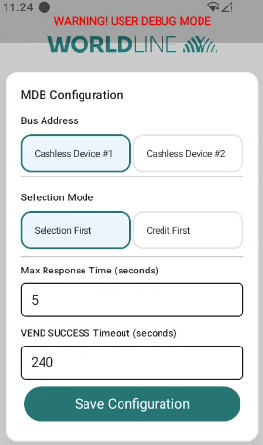
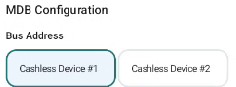
2. The bus address. There are two options that MDB defines. Select the one you have connected the terminal to.
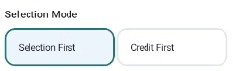
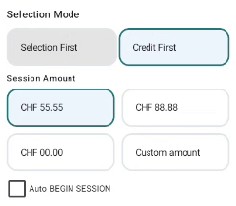
3. The selection mode decides the customer interaction. Credit first has more options, which are described in the next step.
4. If you want to select credit first, there are several options to pick from, as to how much the terminal shall reserve for the selection. The best option depends on the vending machine’s display and compatibility with the VMC’s options.
The option “Auto BEGIN SESSION” can be used to automatically start a new session after each selection and payment process. If “Auto BEGIN SESSION” is not selected, the customer will have to interact with the terminal before making a selection on the vending machine.
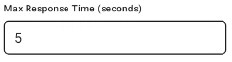
5. The max response time defines the maximum amount of time the vending machine will wait for a response during certain operations.
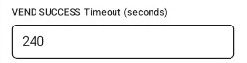
6. Maximum amount of time the terminal shall wait for the VEND SUCCESS message from the vending machine, which tells us that the paid for item has been dispensed. Default is 240 seconds (4 minutes). This should be set to an amount that is reasonable for the vending machine’s dispense time. Once this time is up without the item having been dispensed, we will trigger a refund for the customer.
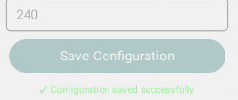
7. Once done, click on „Save Configuration” to save the configured values.
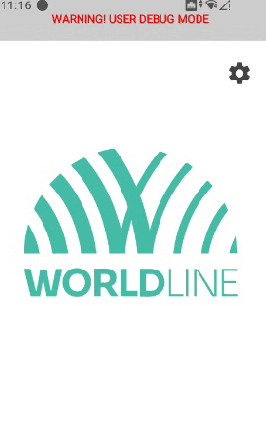
8. Idle Screen with button to enter the configuration screen.
Once the configuration has been saved, an idle screen will be shown. To change the configuration, the app needs to be restarted. For 15 seconds after the app starts, the cogwheel icon is shown to reenter the configuration screen.
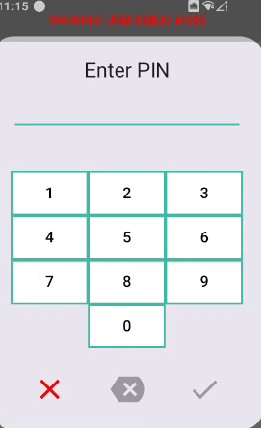
9. When tapping the cogwheel, a PIN screen opens. The PIN is 1235789 (a Z on the keyboard).
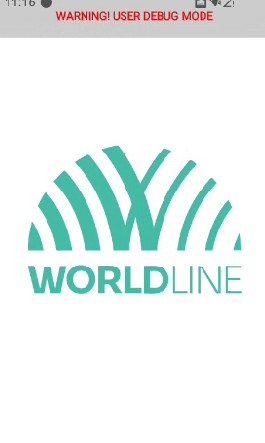
10. Idle Screen.
This screen is shown when selection first or credit first with “Auto BEGIN SESSION” is selected.
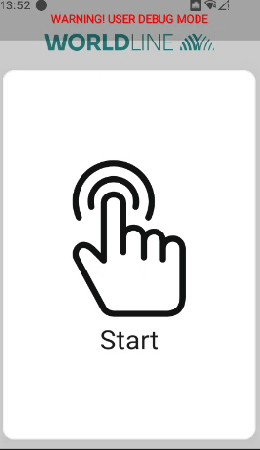
11. Idle screen waiting for user interaction.
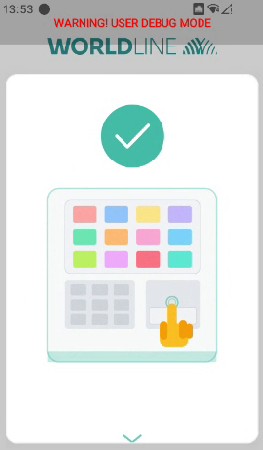
This screen is shown when credit first without “Auto BEGIN SESSION” is selected. The user has to tap the terminal screen before starting a selection.
12. Idle screen waiting for selection.
This screen is shown when credit first without “Auto BEGIN SESSION” is selected and the user has tapped on the previous screen. This indicates that the user shall make a selection on the vending machine.